Watch the tutorial video to see how to use the thumb drive or follow the instructions below:
- Plug in and power on the deivce
- Stick USB stick into USB ports at the bottom of the kiosk screen-Do not remove the USB thumb drive
- The device will automatically load the application and install the updated SCEAA and Hayward application.
You will see a flicker, the 'rainbow screen', or the application seem to start again. This is normal. Do not remove the USB - Select the appropriate content for your needs: B2B or B2C content.
- From there, on first boot, the application will request the Asset Tag and the OQ Code. Please enter both correctly, as this helps us with any diagnostics.
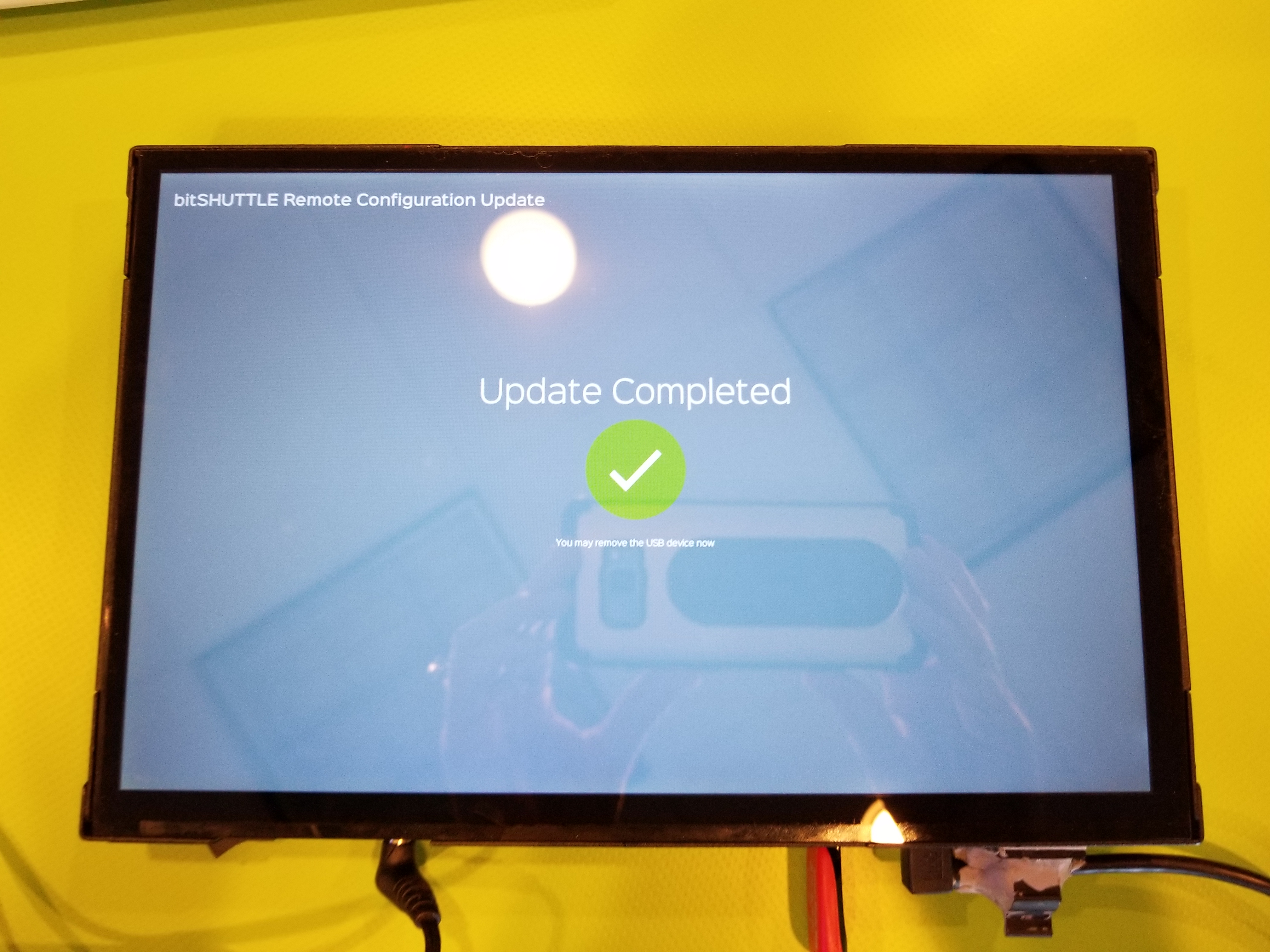
You can find the asset tag on the back of the unit and the OQ code from the store manager. - Do not remove the thumb drive until you see the green check mark (see photo below).